
|
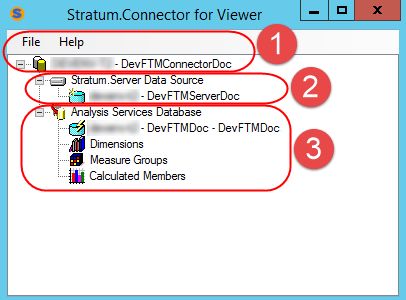
Main
Node  and Toolbar -
The main node in this window displays the name of the server for
the SQL Server database that was defined for Stratum.Connector
at the time of installation. The database name is listed after
the server name. and Toolbar -
The main node in this window displays the name of the server for
the SQL Server database that was defined for Stratum.Connector
at the time of installation. The database name is listed after
the server name.
If you need to adjust parameter settings for
the application, right-click this node and select Parameters.
See also Customize
Parameter Settings.

The main toolbar has a File menu with an option
for exiting the application and a Help menu with options for accessing
the help file or version information about Stratum.Connector. |

|
Analysis
Services Database  - Right-click this
node and select Define Analysis Services Database to set up the
Stratum.Connector Analysis Services database and cube. See also
Define
the Analysis Services Database and Cube and Analysis
Services Database window. - Right-click this
node and select Define Analysis Services Database to set up the
Stratum.Connector Analysis Services database and cube. See also
Define
the Analysis Services Database and Cube and Analysis
Services Database window.

After a database and cube have been set up,
an icon  displays
under this node followed by the name of the Analysis Services
server for the database, the Analysis Services database name,
and the cube name. You can right-click that entry to access the
following menu. The menu options and the Dimensions, Measure Groups,
and Calculated Members entries are defined after this image. displays
under this node followed by the name of the Analysis Services
server for the database, the Analysis Services database name,
and the cube name. You can right-click that entry to access the
following menu. The menu options and the Dimensions, Measure Groups,
and Calculated Members entries are defined after this image.
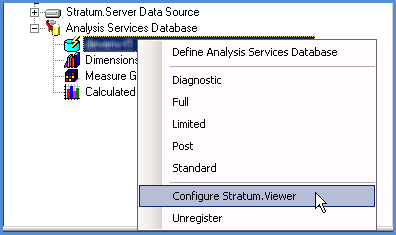
Define
Analysis Services Database - Use this option to re-access
the Analysis Services Database window if you need to review
the database or cube properties, such as their descriptions,
after initially setting them up. Diagnostic,
Full, Limited, Post, and Standard Process - Use the
applicable option to select the type of process that you want
to initiate -- a Diagnostic, Full, Limited, Post, or Standard
process*. The window for starting the type of process that
you selected will display. See also Quick
Start - When to use a Full, Limited, Post, or Standard Process.
*Note:
A Trickle process can only be initiated by a batch process and
therefore does not display on this window.
Use these entries under the Analysis Services
Database node to select and manage the objects for your cube.
|

 -
-
 displays under
this node followed by the name of the server and database for
the related data source.
displays under
this node followed by the name of the server and database for
the related data source. - Right-click
and select Edit. This opens the
- Right-click
and select Edit. This opens the  - Right-click and select
Edit. This opens the
- Right-click and select
Edit. This opens the  - Right-click
and select Edit. This opens the
- Right-click
and select Edit. This opens the