|
Menus
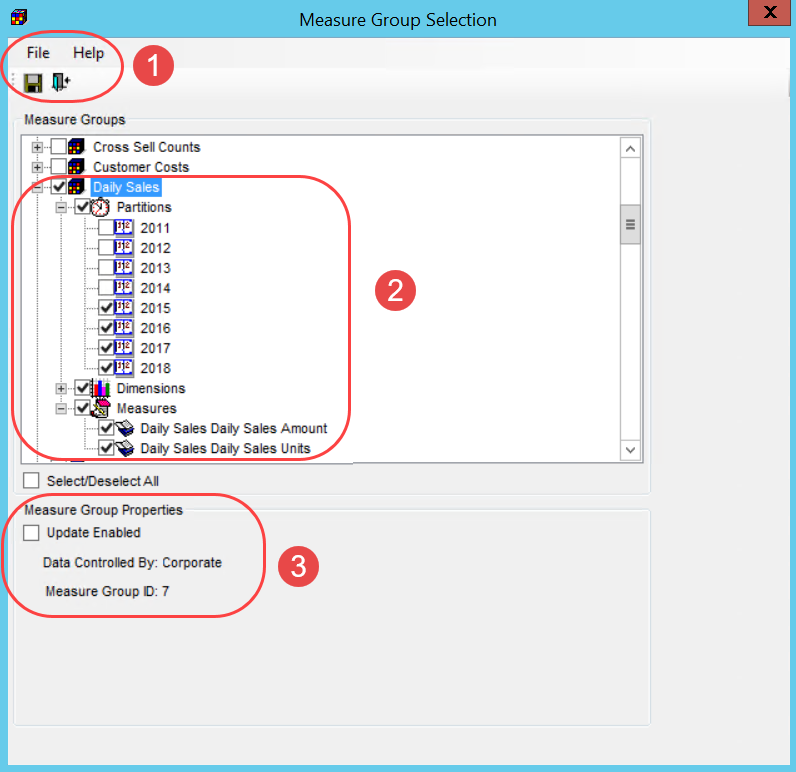
and Toolbar - There are standard File and Help menus at
the top of selection windows. Use options on the File menu or
the icons below it to save edits in |
|
Measure Groups - Use this section to select or de-select the measure groups and related objects for your database -- the partitions, dimensions, and measures.
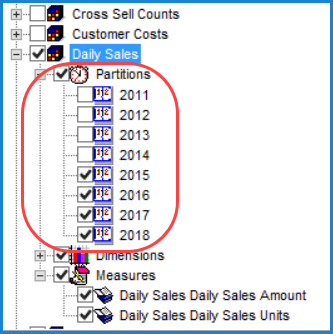
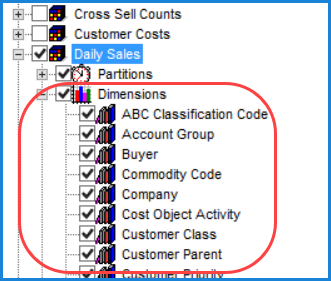
The prior image shows an example of an expanded Measures node, in this case for a Daily Sales measure group. Here are examples of the expanded Partitions and Dimensions nodes for that group. Note that Stratum.Viewer will only display data for the measures selected from a group in relation to the selected partitions and dimensions. For example, data from the 2015 partition would not display for Daily Sales in Stratum.Viewer if that partition wasn’t selected for it in Stratum.Connector.
|
|
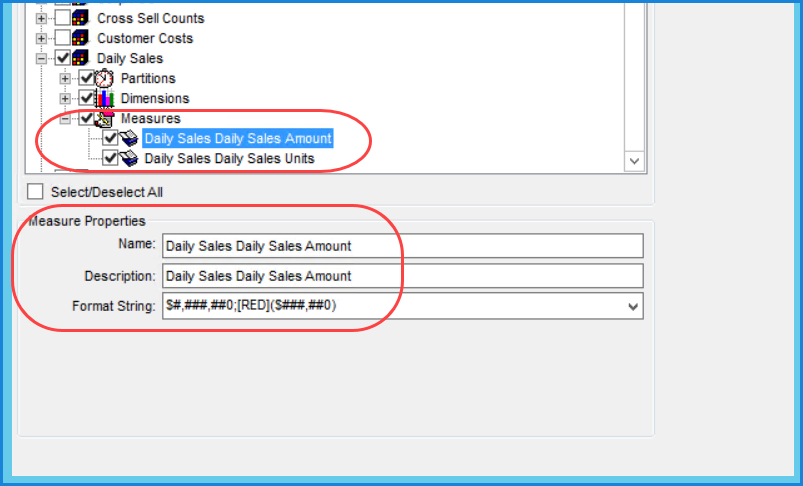
Measure Group Properties -- If you click a measure group, an Update Enabled checkbox displays at the bottom of this window. The checkbox is deselected by default. Selecting the checkbox makes its measures Planning Enabled in Stratum.Viewer, which is a pre-requisite for other steps in setting up Planning features in Stratum.Viewer. Stratum.Viewer administrators can then allow measures in the group to be edited in planning views and give users Update authority to measures in the group for planning purposes. Also, the unique ID associated with this group displays at the bottom of the window. Above the ID is a read-only property named Data Controlled By. That property reflects the status of a category maintenance property in Stratum.Viewer, and the status will either be Corporate or User. If the property is set to "User" in Viewer, then users will be able to import data into measures belonging to the applicable category (measure group) through Data Import* functionality. The source of data for categories with a Corporate designation will exclusively be your corporate data system, for example your ERP or CRM. Those categories cannot be updated with Data Imports. *Note: Data Import is only available for implementations running Stratum.Server on a Windows SQL server and that have a license for the Stratum Analyst Hub. Data Import is not available for implementations running Stratum.Server on an IBM i Server – the Data Controlled By property is always Corporate for those types of implementations. Measure Properties – If you click an individual measure in the group, you will see its properties at the bottom of this window. All properties can be edited. Note: All properties will remain disabled in the case of measures that haven't been selected for your database and in the case of partitions and dimensions.
|

 or close
 a window. Use options on the
Help menu to access the help file or version information about
Stratum.Connector.
a window. Use options on the
Help menu to access the help file or version information about
Stratum.Connector.
 the nodes for objects to see subsequent nodes or detail for
an object. Then use the checkboxes of individual partitions,
dimensions, or measures to add or remove them. Checkboxes
of objects belonging to the same measure group are interdependent,
and the window will automatically select or de-select related
objects for you as you use the checkboxes. For example:
the nodes for objects to see subsequent nodes or detail for
an object. Then use the checkboxes of individual partitions,
dimensions, or measures to add or remove them. Checkboxes
of objects belonging to the same measure group are interdependent,
and the window will automatically select or de-select related
objects for you as you use the checkboxes. For example: