
|
Dimension(s)
- Use this section to select or de-select the dimensions and related
objects for your database -- the hierarchies, levels,
and attribute relationships.
Individual
Objects - Expand  the nodes for objects to see subsequent nodes or detail for
an object. Then use the checkboxes of individual dimensions,
hierarchies, levels, or attribute relationships to add or
remove them. Checkboxes of objects belonging to the same dimension
are interdependent, and the window will automatically select
or de-select related objects for you as you use the checkboxes.
For example:
the nodes for objects to see subsequent nodes or detail for
an object. Then use the checkboxes of individual dimensions,
hierarchies, levels, or attribute relationships to add or
remove them. Checkboxes of objects belonging to the same dimension
are interdependent, and the window will automatically select
or de-select related objects for you as you use the checkboxes.
For example:
Selecting
a dimension automatically selects all of its hierarchies,
levels, and attribute relationships. De-selecting
a hierarchy automatically de-selects its level plus the dimension
to which it belongs. Selecting
a level automatically selects its attribute relationships
plus the hierarchy and dimension to which it belongs. Select/Deselect
All - Use this checkbox to select or deselect all objects
in the window at once. |
 |
Properties
- Click on a dimension, hierarchy, or level to see their properties
and edit them. Click an attribute relationship to edit its properties
or create
a hierarchy from it.
Note:
All properties will remain disabled in the case of objects that
haven't been selected for your database.
Attribute
Relationships, Corporate
Controlled  -
Attribute
values originating from Corporate business systems and that
are stored in your Stratum.Server database and maintained
in Stratum.Connector are known as Corporate Controlled. They
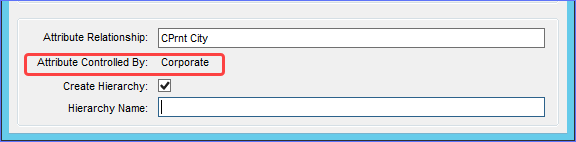
have an Attribute Controlled By status of Corporate, which
shows in the bottom of the Dimension Selection window. In
Connector, you can do the following: -
Attribute
values originating from Corporate business systems and that
are stored in your Stratum.Server database and maintained
in Stratum.Connector are known as Corporate Controlled. They
have an Attribute Controlled By status of Corporate, which
shows in the bottom of the Dimension Selection window. In
Connector, you can do the following: Change the name, which defaults to
the Stratum.Planner name. Use the Create Hierarchy checkbox
to create a hierarchy from the attribute relationship. The
Hierarchy Name field only displays when the checkbox is selected.
Selecting “Create Hierarchy” will create a new hierarchy with
the specified name. This new hierarchy will be part of the
associated dimension and can be used to display data in the
Stratum.Viewer grid the same as other hierarchies. Security
defined for the associated dimension will be applied to this
new hierarchy. The new hierarchy will be available to Stratum.Viewer
users after the next Analysis Services cube
process. Remove
a previously created hierarchy on it. Click the related attribute
relationship and then de-select the Create Hierarchy checkbox.
The next cube process will remove all references to this hierarchy
from Stratum.Viewer. De-select
it, which makes it unavailable in Stratum.Viewer after the
next Full process.
Attribute Relationships,
User Controlled -
Attribute values originating from an Excel Spreadsheet and
that are updated using Stratum.Viewer Master Data Import functionality
functionality* are known as User Controlled. They are defined
using Stratum.Viewer User Controlled Attribute Maintenance.
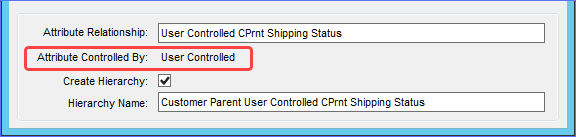
They have an Attribute Controlled By status of User Controlled,
which shows in the bottom of the Dimension Selection window. In Connector,
you can view their properties including seeing any hierarchy
created from the attribute. Any type of
maintenance such as property changes, deletion, or creating
hierarchies from this type of attribute relationship must
be done in Stratum.Viewer’s Attribute Maintenance.
*Note:
User Controlled Attribute Maintenance functionality is only available
for implementations running Stratum.Server on a Windows SQL server
and that have a license for the Stratum Analyst Hub. It is not
available for implementations running Stratum.Server on an IBM
i Server – the Attribute Controlled By property is always Corporate
for those types of implementations.
 |
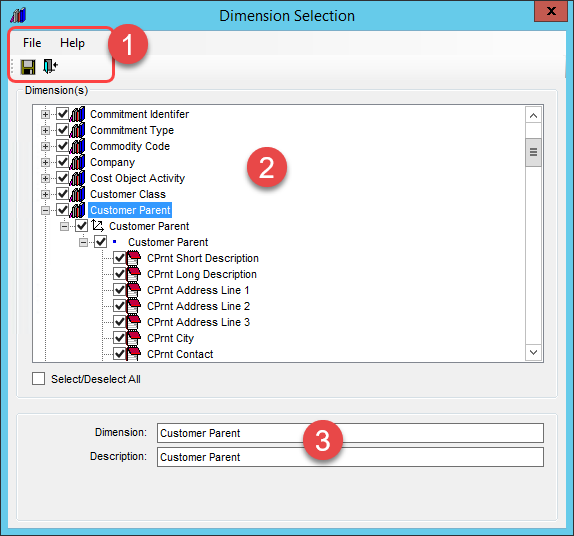

 or close
 a window. Use options on the
Help menu to access the help file or version information about
Stratum.Connector.
a window. Use options on the
Help menu to access the help file or version information about
Stratum.Connector. , Hierarchies
 , and Levels
 -
You can change the name and description, which default to
their Stratum.Planner name and description.
-
You can change the name and description, which default to
their Stratum.Planner name and description.