
|
General Tab - Use this tab to control
general properties for the Stratum.Connector for Analysis Services
database.
Process
Log Verbosity – By default, set to Diagnostic, which means
information about the databases and servers in your implementation
will be retrieved and displayed in the processing logs when
you initiate a Stratum.Connector for Viewer process. Diagnostic
information retrieval can be disabled by selecting Minimal
or Normal. Enable Group By for Detail
Flip-up Views – Controls whether or not the Stratum server
database engine will apply an aggregation on the result set
and send less data to the Analysis Services server to process.
The option is enabled by default. Automatically
Select New Dimensions - Over time, after you have already
set up your Stratum.Connector for Viewer Analysis Services
database/cube, you may decide to add more dimensions
by selecting additional ones in the Dimension
Selection window. If you want all the newly added dimensions
to be selected for all applicable measure
groups that are a part of the database, you can have Stratum.Connector
for Viewer make the selections automatically. The selections
will be made once the database is processed. You can enable
that option by selecting the Automatically Select New Dimensions
checkbox on this General tab.
If Automatically Select New Dimensions is de-selected, you
will need to manually select the dimensions using the Measure
Group Selection window. Manually selecting the dimensions
may be preferred if you want the newly added dimensions selected
for just some of your measure groups rather than all measure
groups. See also Why
can't Stratum.Viewer Users see Data for a Recently Added Dimension?. Currency
Dimension Name - This field controls the name given
to the currency dimension that Stratum.Connector for Viewer
creates while processing your Analysis Services database and
cube. Customizing the name is optional. Registration
Key – A valid
registration key is required for licensed copies of Stratum.Connector
for Viewer. If you receive a message about a missing or invalid
key, contact Silvon Support at (800) 474-5866 or product.support.usa@silvon.com. |

|
Key Errors Tab - Use this tab to
control whether or not Stratum.Connector for Viewer will stop
processing the Analysis Services database if key errors occur
during processing. A key error occurs when Stratum.Connector for
Viewer finds a dimension value (members) in the Stratum.Server
database for which no Master File information exists.
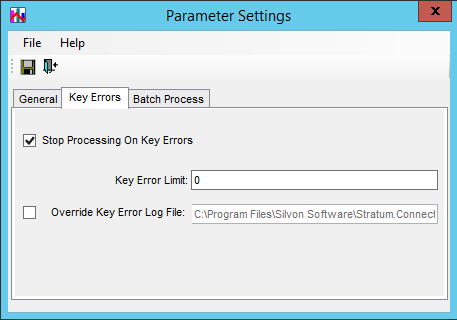
Stop
Processing on Key Errors - This option is selected
by default, which means processing will be stopped when the
Key Error Limit has been reached. Error information will be
written to the Key Error Log file. The Key Error Limit is
described later in this topic and determines how many key
errors can occur before processing will be stopped (for example,1,
20, etc.). When processing is stopped, your Analysis Services
database and cube will be locked. This prevents data from
being used in Stratum.Viewer until the errors can be corrected
and the database is processed successfully. Once a set of
errors is fixed, you can initiate the database processing
again. If the Key Error limit is reached again, processing
will be stopped again so you can fix that set of errors and
once again initiate database processing.
If you de-select this option, database processing will continue
regardless of any key errors that occur. Error information
will be accumulated in the Key Error Log file. When processing
is done, your Analysis Services database and cube will be
locked until you correct the key errors and the database is
processed successfully.
Key
Error Limit - Use to specify how many key errors can
occur before database processing will be stopped. For example,
when Stop Processing on Key Errors is selected and the Key
Error Limit is set to 0 (zero), then processing will stop
at the first error that occurs. Or, if Stop Processing on
Key Errors is selected and the Key Error Limit is set to 20,
then processing will stop if twenty errors occur. This field
is disabled when Stop Processing on Key Errors is de-selected.
Override
Key Error Log File - This option is used to customize
the location and name of the log file that captures key errors.
Select the checkbox and
then specify a location. This log file is created whether
you decide to stop processing after a certain number of key
errors occur or have processing continue regardless of the
number of key errors that occur. The user logged into this
application and initiating processes needs to have read/write
permissions to the specified location. The extension used
for the specified file must be *.log.
Batch Process Tab - The Batch
Process parameter settings are used by default when Stratum.Connector
for Viewer updates are processed in batch. A batch process is
typically executed on a nightly basis in order to update the Analysis
Services database and cube
with the most recent data from Stratum.Server. The options include
the ability to generate emails after each batch process. Emails
are a means of notifying recipients that a process occurred. A
log attached to the email can be reviewed for additional information,
such as whether or not the process completed successfully. While
setting up a batch process, you can optionally override these
default settings – a list of relevant batch command parameters
to use for that purpose is provided in the topic Batch
Command Parameters for Silvon.Connector.exe.
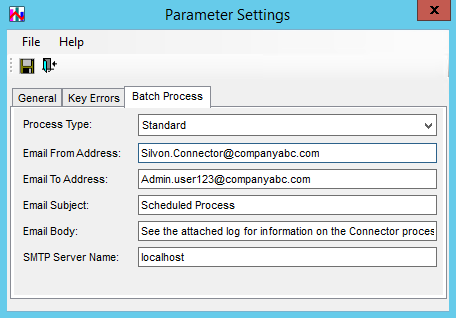
Process
Type - Use this list to define what type of process
will be executed as part of the batch process. See also Quick
Start - When to use a Full, Limited, Post, Standard,
or Trickle Process. Email
Properties - Four fields are provided to customize
email properties. If you enter multiple email addresses in
the From or To field, use commas or semi-colons to separate
the addresses. SMTP
Server Name - The value specified in this field indicates
how Stratum.Connector for Viewer will deliver these emails.
The field defaults to a “localhost” value. That means the
email will be delivered using the SMTP configurations for
the server where Stratum.Connector for Viewer resides. If
you plan to use a different SMTP server, enter that server
name in the SMTP Server Name field. Enter the server name
in a format that will be recognized by your network. For example,
the server name or IP address or in the format of server name.networkname.com. |
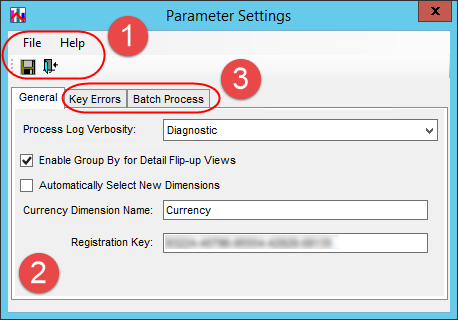

 or close
  a window.
Use options on the Help menu to access the help file or version
information about Stratum.Connector for Viewer.
a window.
Use options on the Help menu to access the help file or version
information about Stratum.Connector for Viewer.