|
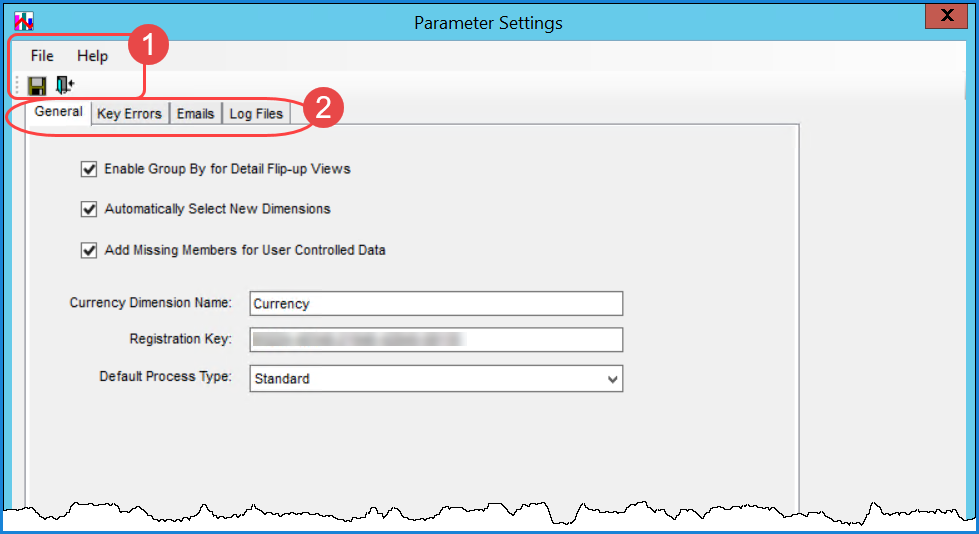
Menus
and Toolbar - There are standard File and Help menus at
the top of selection and settings windows. Use options on the
File menu or the icons below it to save edits in |
|
Settings Tabs - There are tabs to control specific aspects of Connector including the emails and log files it will generate when it processes related databases. See the sections that follow for details about each tab. It is important to review and set up properties specific to your implementation and preferences. Click a tab name below to learn about its purpose. |
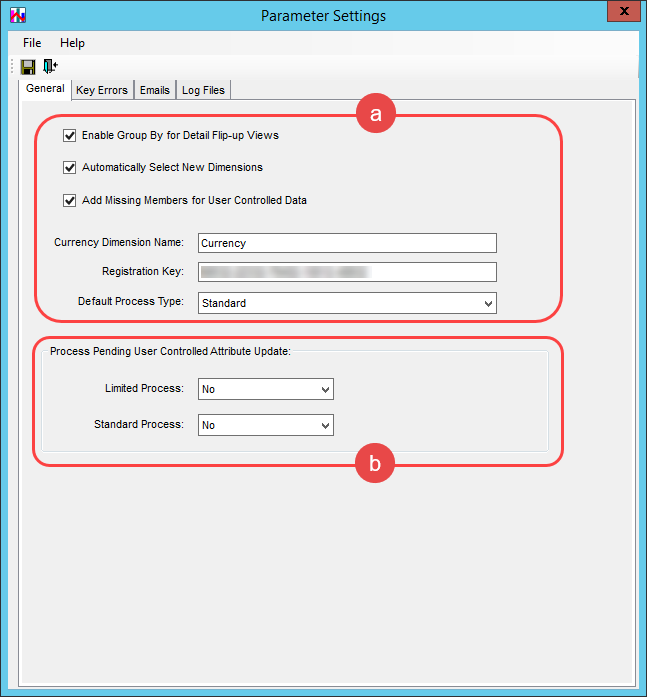
Use this tab to control general properties for the Stratum.Connector for Analysis Services database and to enter the registration key for your Connector license.
 |
Note: This parameter only applies to Stratum Server SQL Server implementations.
|
 |
Note: Only set the properties to Yes in situations where it is okay if the Limited or Standard process is switched to Full process (a Full process means users won’t be able to access views in Stratum.Viewer until after the process is completed). |
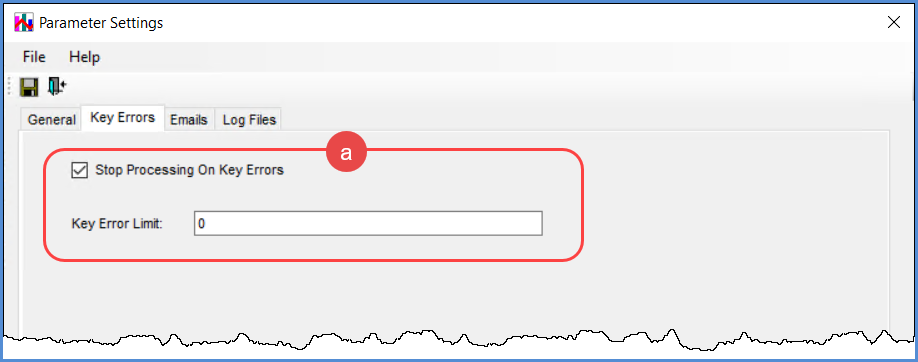
Use this tab to control whether or not Stratum.Connector will stop processing the Analysis Services database if key errors occur during processing. A key error occurs when Stratum.Connector finds a dimension value (members) in the Stratum.Server database for which no Master File information exists.
See also the description of the Log Files tab, which includes a property for customizing the location and name of the log file that captures key errors.
|
|
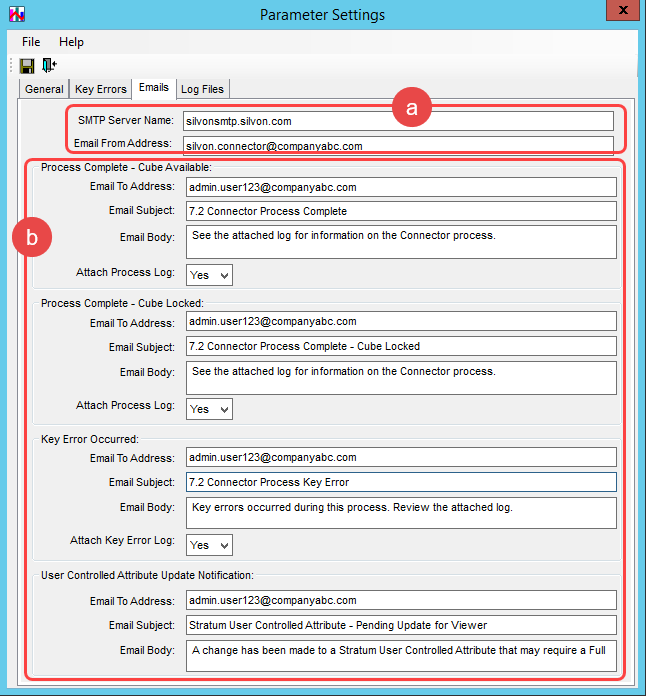
Use this tab to control properties for the emails that Stratum.Connector for View generates to keep administrators informed about the status of processing the Analysis Services database and cube. Settings for each type of email also allow you to determine if copies of log files for a process will be attached to the email that is generated.
To learn more about Email settings, watch this Email Notifications Video.
|
|
|
Four different types of emails can be generated by Stratum.Connector after a process. Emails are a means of notifying recipients that a process occurred and optionally giving them a copy of the log file for the process or potential key errors related to a process. Filling in these properties is required for Connector to send out any emails. For each of the email types available, you need to specify the Email To Address, Email Subject, and Email Body. If you enter multiple email addresses in an Email To field, use commas or semi-colons to separate the addresses. By default, for each type of email the applicable log file for the will be attached to its email unless you change an email’s Attach Process Log property to No. The three types of emails are:
Note: When a Limited or Trickle process completes but encounters an error that prevents the cube from being updated, the cube remains available to users. In this case, Connector will append a ‘Process failed with an error’ note to the Subject of your email message to indicate that while the cube is available, the updates failed.
|
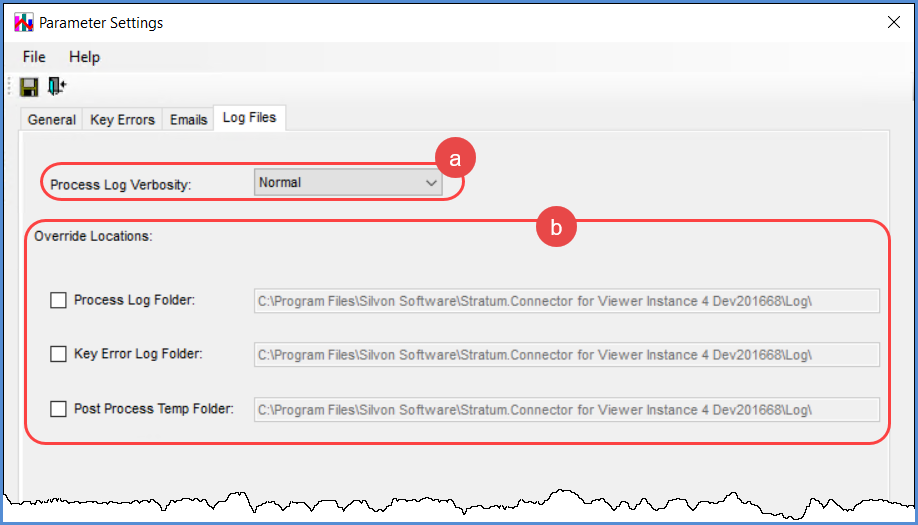
Use this tab to customize properties for log files that Stratum.Connector for View generates for different types of processing or processing outcomes (for example, to log key errors).
|
Process Log Verbosity – Controls the type of information logged in log files related to the processing of your Analysis Services database and cube. By default, verbosity is set to Normal, which means your logs will include the times a process started and finished as well as details about what objects were processed. If you need more detailed information such as when debugging a processing error, change this option to Debug. In that case, information to aid in understanding what happened during a process that ended in an error will be retrieved and displayed in the processing logs. |
|
Override Locations – By default, log files for database processing are stored in the Log folder of the Stratum.Connector main application folder. You can customize the location of any of the three types of log files listed in this tab. Select the checkbox of the log file type that you want to customize settings for, and enter your override changes for that log. The log file locations you can override are:
|

 or close
  a window.
Use options on the Help menu to access the help file or version
information about Stratum.Connector.
a window.
Use options on the Help menu to access the help file or version
information about Stratum.Connector.